Unlike various other systems such as Mender or Kubernetes, WALT was designed from the ground-up for experimentation and testing, not for building production systems. In this context, the default boot mode of WALT nodes (i.e., network boot mode) has some interesting features. However, some of the consequences of this mode may surprise new users.
Reproducibility at each reboot
If you are used to WALT, you probably noticed the message displayed when using walt node shell:
$ walt node shell rpi5b-2
Caution: changes outside /persist will be lost on next node reboot.
Run 'walt help show shells' for more info.
[...]
root@rpi5b-2:~#
In the default mode, the OS booted on a WALT node is a very temporary environment.
If the user (or an OS service) creates or modifies files on the node, then those modifications are discarded as soon as the node is rebooted (except for the content of /persist), and the OS state returns to what the OS image contains, unchanged.
This behaviour allows a concept of reproducibility at each reboot: the behaviour of the node is only influenced by the OS image content, not by any previous activity. WALT users often leverage this principle: they automate everything by editing the OS image, then boot it on nodes, and finally they reboot N times the nodes for N experiment runs.
Reminder: For permanent changes, instead of working on the node, one must edit the OS image itself. This can be done using one of the
waltcommands exposed in a previous blog post.
How it works
As shown on the following figure, the OS of the node is mostly built on the union of two components:
- The WALT OS image, mounted as a read-only network share (
NFS mountcomponent) - Writeable storage space, allocated in the RAM (volatile memory) of the node.
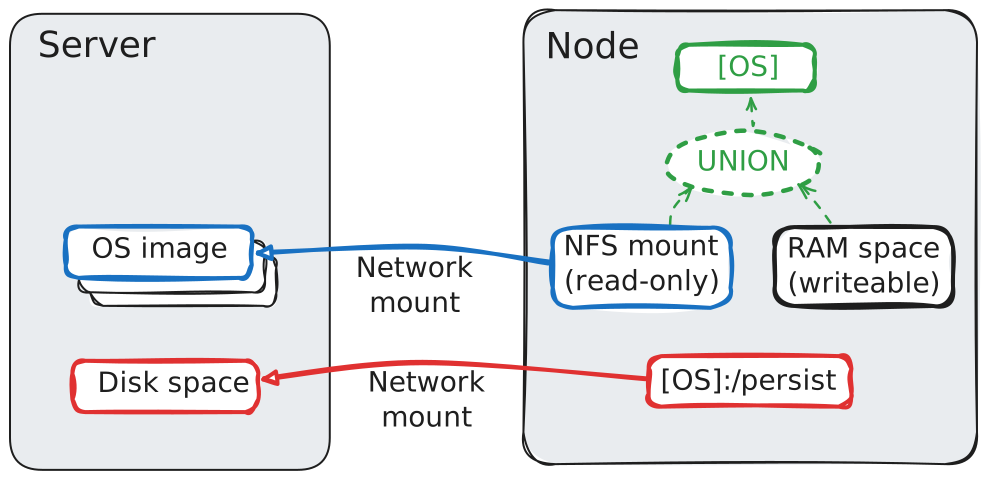
The RAM space is obviously empty when the node starts booting, so the OS just mirrors the content of the OS image at first. Then, file creations, modifications or deletions are made on the writeable storage, in RAM.
Nodes also mount a directory called /persist where users can save data (e.g. experiment result files).
Note that using WALT version >= 10 and Debian-based images, a swap-on-network feature is also activated (described later).
Other benefits of network boot
Apart from this concept of reproducibility at each reboot, this boot technique has other advantages:
- Deploying an OS image on a node just means updating a symlink on the server and sending a reboot request to this node. The server does not need to send the whole OS image over the network, the node will just retrieve the files it needs while running, which is much more efficient. For instance, if you run
walt node boot <vnode> <other-image> && walt node shell <vnode>, then it will take typically less than 15 seconds for the node to reboot on<other-image>and then accept your shell session on this new OS. - The local storage of the nodes is not used. Local storage is usually the most fragile part of the hardware, so the platform maintenance burden is much reduced with this boot mode. New models of Raspberry Pi boards simply work without an SD card in WALT. Older models do need an SD card, but this SD card just stores the network bootloader, so the SD card remains read-only and has a very long lifetime.
Dealing with the limited RAM space
New WALT users may be surprised by this behaviour of storing new and modified files in RAM.
Example case
To illustrate this, let’s create a virtual node on an older WALT server (version 9.0). Note: it would be the same with a physical node.
$ walt node create vnode1
[...]
$ walt node shell vnode1
[...]
root@vnode1:~#
root@vnode1:~# free --mega -h
            total        used        free      shared  buff/cache   available
Mem:         456M         91M        285M          6M         98M        365M
Swap:          0M          0M          0M
root@vnode1:~#
The default RAM amount of virtual nodes is 512MB, so vnode1 has 512MB of RAM in total. However, excluding the part allocated by the kernel, only 456M are available for the OS (cf. column total).
During OS bootup, 91MB more have been allocated (cf. column used), so only 365MB remain available (cf. column available).
In the case of WALT, those 365MB may be used for two different purposes:
- For letting processes allocate memory (this is the standard use of RAM);
- For storing new and modified files (cf. the “RAM space” in the previous figure).
The following command allows to check how large is this RAM space:
root@vnode1:~# df -h "/"
Filesystem      Size  Used Avail Use% Mounted on
union           229M  6.0M  223M   3% /
root@vnode1:~#
We see that only half the amount of total RAM (i.e., 229MB) is allowed for storing our new or modified files. Allowing significantly more could be a problem if some processes allocate a lot of memory.
Let’s verify how RAM usage evolves when creating a file 100MB large with the command dd.
root@vnode1:~# dd if=/dev/urandom of=file_100M bs=1M count=100
[...]
root@vnode1:~#
root@vnode1:~# ls -lh file_100M
-rw-r--r-- 1 root root 100M Jun 18 13:23 file_100M
root@vnode1:~#
root@vnode1:~# free --mega -h
            total        used        free      shared  buff/cache   available
Mem:         456M        191M        197M        106M        186M        265M
Swap:          0M          0M          0M
root@vnode1:~#
root@vnode1:~# df -h "/"
Filesystem      Size  Used Avail Use% Mounted on
union           229M  106M  123M  47% /
root@vnode1:~#
As we expected, creating this big file reduced the amount of available RAM by 100MB. The amount of available filesystem space was also reduced by the same amount.
Obviously if we continue creating big files, we will quickly run out of space:
root@vnode1:~# cp file_100M file_100M_2
root@vnode1:~# df -h "/"
Filesystem      Size  Used Avail Use% Mounted on
union           229M  206M   23M  91% /
root@vnode1:~# cp file_100M file_100M_3
cp: error copying 'file_100M' to 'file_100M_3': No space left on device
root@vnode1:~#
Solutions
If you just want to modify the OS (e.g., apt install, etc.), doing those modifications on the node is a bad idea anyway: those changes will be lost on next reboot. Instead, you should edit the OS image. Note that if you edit the OS image using walt image shell for instance, then you are not subject to those RAM size limits: walt image shell runs in a virtual environment on the server, not on a node like walt node shell.
If you need to store large files, such as experiment results, you can store them in /persist.
Or if experiments results can be saved in the form of “log lines”, you can use the logging system of WALT.
If you are working with virtual nodes, you can also increase their RAM amount in a snap:
$ walt node config vnode1 ram=1G
Done. Reboot node(s) to see new settings in effect.
$
If your WALT server is up-to-date (version >= 10) and your are using Debian-based OS images, swap-on-network can act as a safety net for such scenarios, as shown below.
If none of the above solutions meet your needs, consider using an alternative boot mode.
Swap-on-network
WALT version 10 introduced more flexibility for working on nodes thanks to a new feature called swap-on-network. It added the component named [swap-device] to our figure:
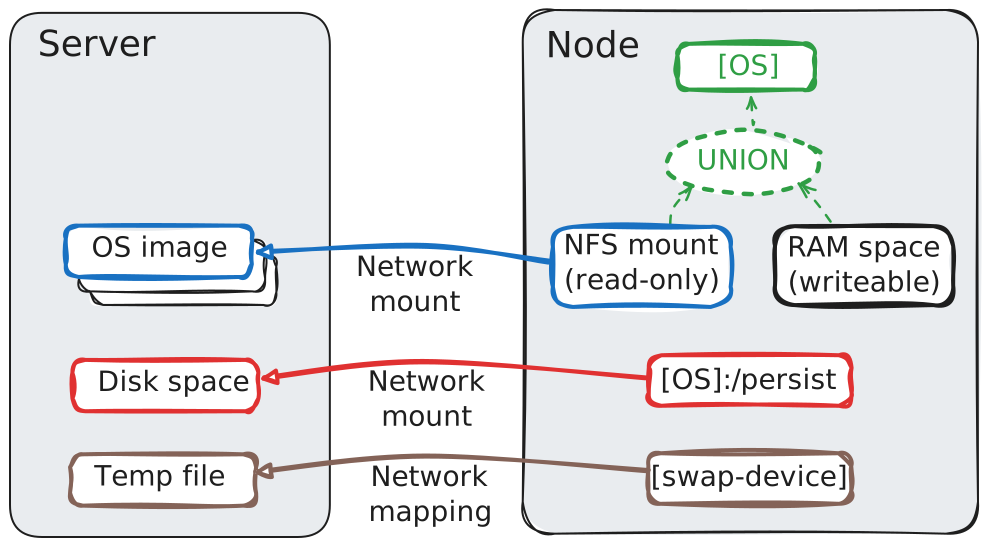
Swapping is a technique allowing to overcome low RAM problems. When needed, regions of RAM that were not recently used are saved to a “swap device” so that those RAM regions can be freed and reused for something else. Later, if some data of the swap device is recalled, then this data is moved back to RAM.
On most systems, the “swap device” is a local disk partition. But in the case of WALT, nodes are often diskless, so we decided to use a “network block device” (NBD) instead: the swap device of the node mirrors a temporary file of the server.
Here is a sample session:
$ walt node shell vnode2
[...]
root@vnode2:~# free --mega -h
            total        used        free      shared  buff/cache   available
Mem:         456M        108M        262M         11M        108M        347M
Swap:      16383M          0M      16383M
root@vnode2:~#
root@vnode2:~# df -h "/"
Filesystem      Size  Used Avail Use% Mounted on
union           8.0G   12M  8.0G   1% /
root@vnode2:~#
We see that vnode2 has 16GB of “swap space”, which allowed to increase the filesystem space to 8G.
So we can create much more files before we run out of space:
root@vnode2:~# dd if=/dev/urandom of=file_100M bs=1M count=100
[...]
root@vnode2:~#
root@vnode2:~# cp file_100M file_100M_2
root@vnode2:~# cp file_100M file_100M_3
root@vnode2:~#
root@vnode2:~# df -h "/"
Filesystem      Size  Used Avail Use% Mounted on
union           8.0G  312M  7.7G   4% /
root@vnode2:~#
root@vnode2:~# free --mega -h
            total        used        free      shared  buff/cache   available
Mem:         456M        399M         21M        288M        346M         56M
Swap:      16383M         24M      16359M
root@vnode2:~#
Note that the node also activates the zswap kernel module at boot (if available on the OS image) to compress the swap space, so the amount used is only 24MB in this case.
Obviously, the 16GB swap space can also be useful for memory intensive processes.
This feature is only available on WALT OS images providing a capable-enough NBD client. This is the case of our up-to-date Debian-based images. It is available for both virtual and physical nodes.
Last words
I hope you found this blog post about the default (and most used) WALT boot mode interesting. Note that for specific experimental needs, WALT also comes with alternative boot modes allowing to work with node local storage.
Thanks to Simon Fernandez for proofreading. If you have questions, we can answer you on the mailing list.